Short answer: Revisit a small set of saved passages, ask why you kept each one, and check the original before adding a fresh thought. EasyReadAI’s Today’s 5 quotes brings your own excerpts back into view. It is not a public quote feed, a spaced-repetition scheduler, or a guarantee that you will remember a book.
This guide covers the practical review session. For a broader reading method, see how to remember what you read. The Review feature guide explains the available entry points.
A daily highlight review, step by step
- Open Review and start with Today’s 5 quotes. Notice the book title before moving to the next passage.
- Ask what made the excerpt worth saving. If you cannot explain it yet, that is a useful question to keep.
- Open the note to check the full saved passage. “Full text” means that excerpt, not the entire book.
- Add one thought in your own words: a changed interpretation, an example, or a condition you missed.
- Continue through the selection. The completion state marks the end of that session; you can also read it again.
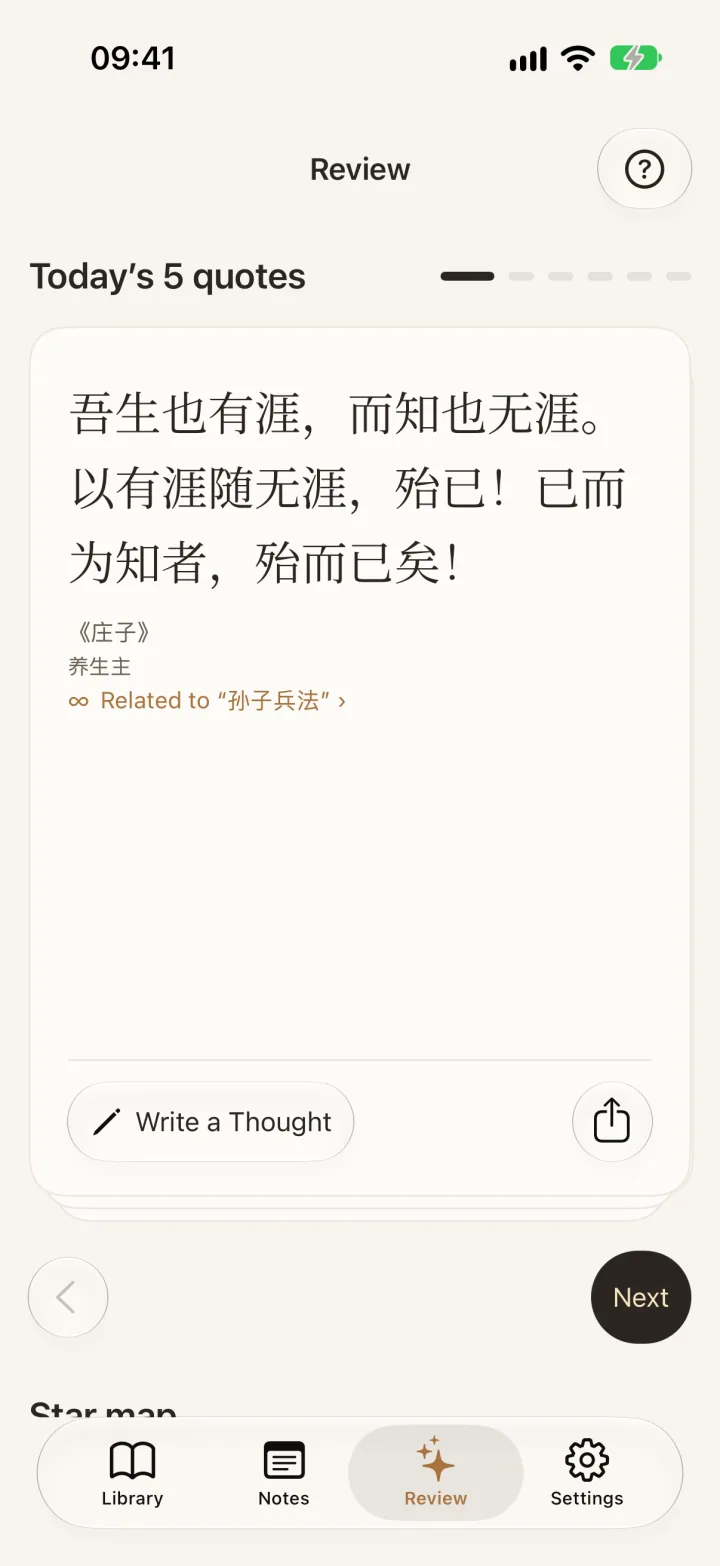
If a passage suggests a connection to another book, compare the original texts before accepting the link. Shared words do not establish agreement between authors.
Daily review, widgets, and search do different jobs
| Your aim | Start here | Boundary |
|---|---|---|
| Deliberately reread a small selection | Today’s 5 quotes in the app | A small collection can repeat; five new excerpts are not guaranteed |
| Encounter a passage on your Home Screen | iPhone or iPad excerpt widget | iOS only; system scheduling controls refreshes |
| Find a specific book or passage | Note search and book filters | The source information or text must already be saved |
| Compare two authors | Connections and full note details | A candidate still needs your judgment |
The widget does not promise synchronized updates with in-app Review. Its separate setup is covered in the reading highlights widget guide.
What to check when no excerpts appear
Start with the notes on the current device. A comment without quotation text is not the same as a saved excerpt. Capture a passage from an ebook, type or paste one, or save checked text from a paper-book photo. Selection rules still apply; saving a note does not guarantee that it immediately appears in the next review.
WeRead is a manual copy-and-paste source: copy each book separately. It is not account sync and does not create a link back to the WeRead passage. Keep the book title and enough context to recognize the source later.
An example of a useful review note
Illustrative example, not a user result: You saved a passage about patience. Today you add, “This seems to mean waiting for the right conditions, not avoiding action indefinitely.” A passage about taking action may now be worth comparing. Read the assumptions on both sides before treating them as complementary.
If you want AI help, save the excerpt, enter a question, and choose to ask AI. That request uses your authorized online service and may consume credits. Its answer is for reference; reading an explanation is not the same as producing your own.
FAQ
Why am I seeing a highlight I have already reviewed?
Review returns to material you saved earlier. A small collection may repeat, and there is no promise of five unseen excerpts every day. Consider whether your interpretation has changed instead of importing duplicates to fill the session.
Should I reinstall if Today’s 5 quotes is empty?
First check for notes with excerpt text on this device. Do not use uninstalling as the first troubleshooting step: protect locally stored data. Contact support if suitable notes still do not appear.
Is this a spaced-repetition or exam revision system?
No. It resurfaces excerpts without a spaced-repetition schedule or a memory-performance guarantee. Plan exam topics and revision separately when you need that structure.
Does reviewing a passage automatically ask AI?
No. Reading saved notes and viewing on-device connection candidates are separate from an AI request. AI Q&A and optional AI image proofreading have their own consent and network boundaries.
For the next step, see how to read the Star map and understand an empty view.