Free tool
EPUB to text, ready for ChatGPT and Claude
See every chapter with its word count, copy a chapter, or download TXT, Markdown or a ZIP. One click copies the text and opens ChatGPT, Claude or Gemini; long books are split into parts with a prompt on each.
Your file is processed in your browser and never uploaded.
Export
Only selected chapters are exported. Markdown includes YAML front matter, ready for Obsidian.
Use with AI
The easiest way: download a TXT file and upload it to the AI. ChatGPT, Claude and Gemini all accept text files, so there is nothing to split.
Parts break between chapters first, and between paragraphs when a chapter is too long; sizes are rough estimates. Once you paste, the text is sent to the AI service you chose.
Only for DRM-free files you have the right to use. This tool does not offer or support any way to remove DRM.
Hand an EPUB to AI in three steps
- Drop or choose an EPUB. The book is parsed in your browser, not uploaded.
- Select the chapters you need: copy one, or download TXT, Markdown or a ZIP.
- Upload the TXT to your AI, or pick an AI and paste the parts in order. Each part starts with a prompt.
Once the AI has the book, try asking
- Summarize the book chapter by chapter, three sentences each.
- List the main characters and how they are connected.
- What is the author arguing in this chapter, and with what evidence?
- Translate chapter 3 into Spanish and keep the paragraphs.
Can ChatGPT or Claude read an EPUB directly?
ChatGPT
Tested 14 October 2026: once signed in, even on the Free plan, ChatGPT accepted an EPUB and answered from the book; signed out, it cannot upload files at all. EPUB is not named in OpenAI’s common file types, so convert to TXT if an upload fails.
Can ChatGPT read EPUB? Read more →Claude
Claude officially accepts EPUB uploads, but files have a size limit and a whole book may not fit in one conversation. Exporting by chapter lets you send only what you need.
Can Claude read EPUB files? Read more →EasyReadAI app
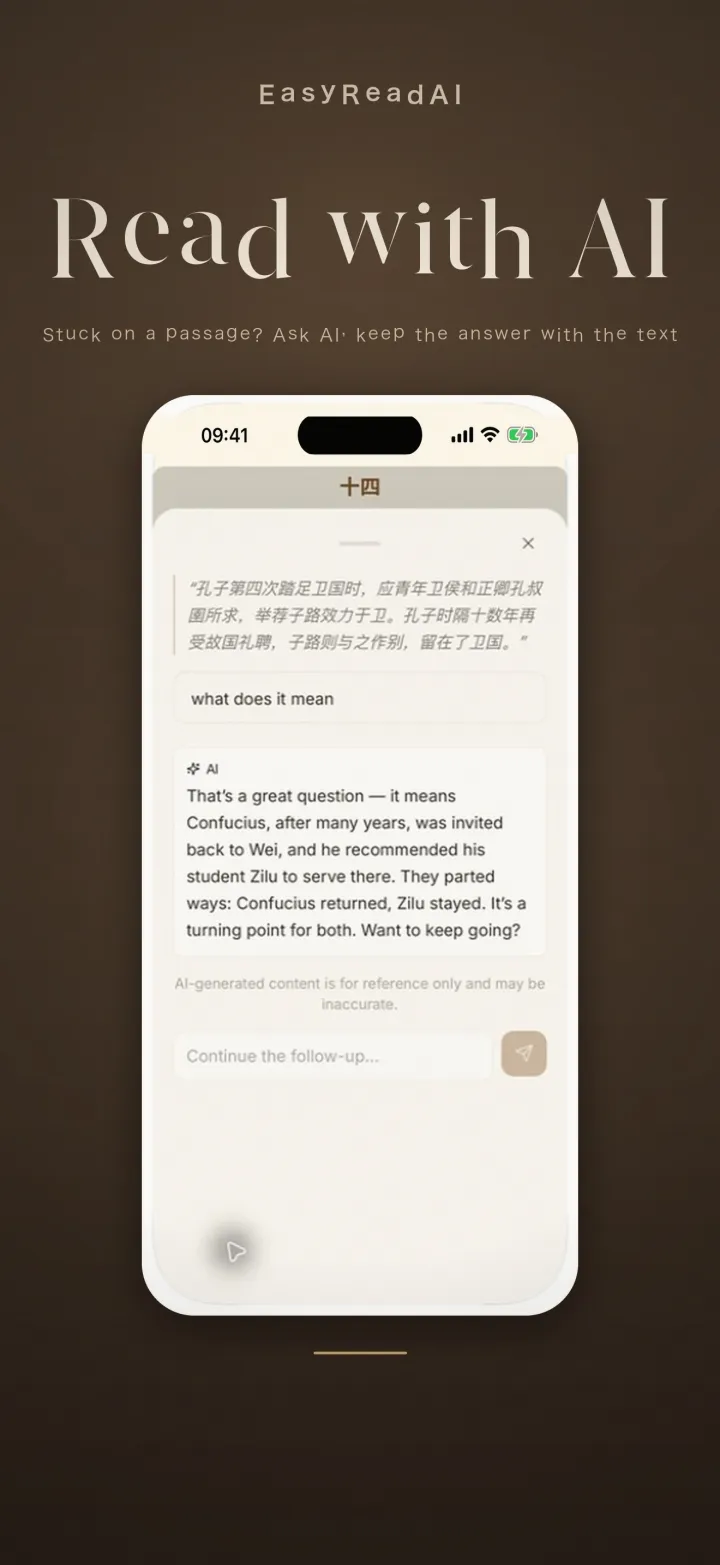
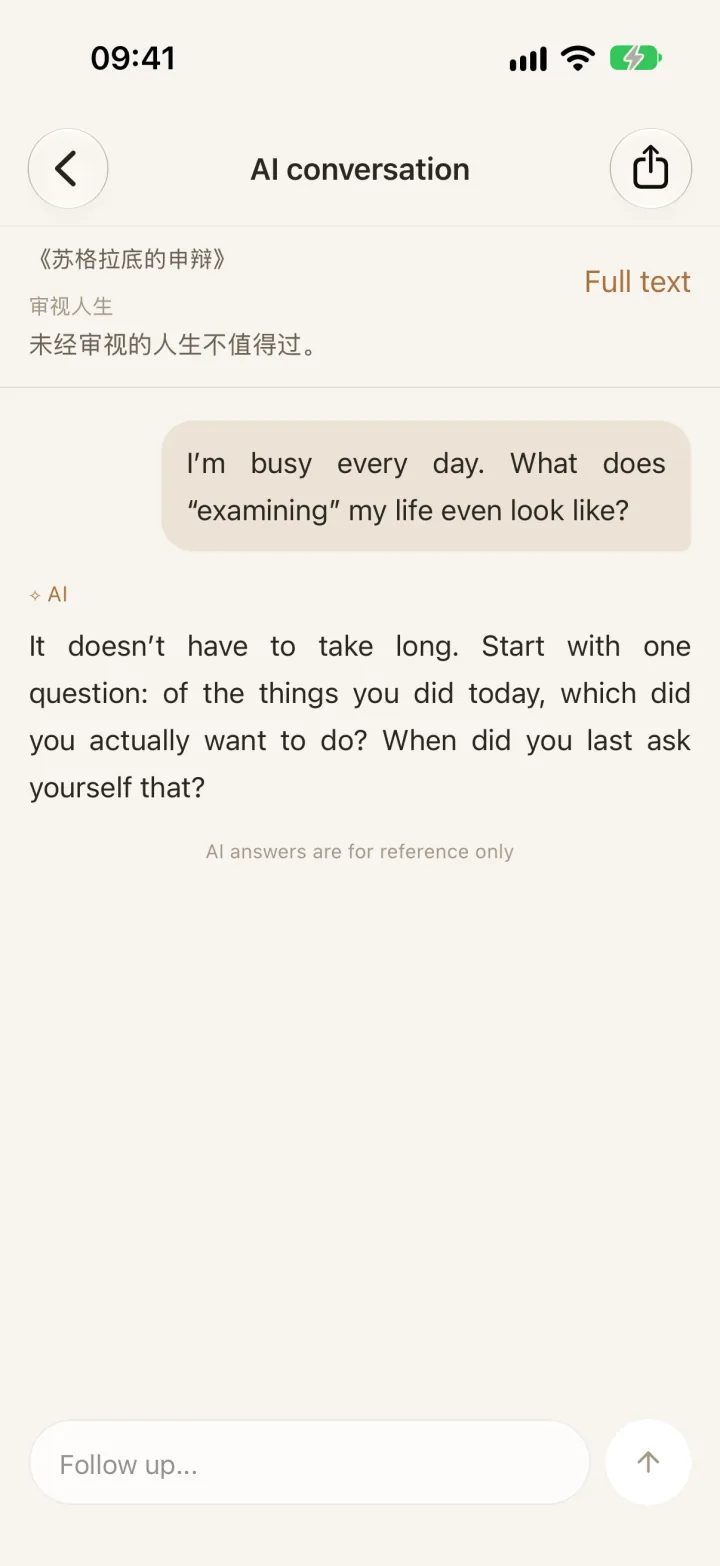
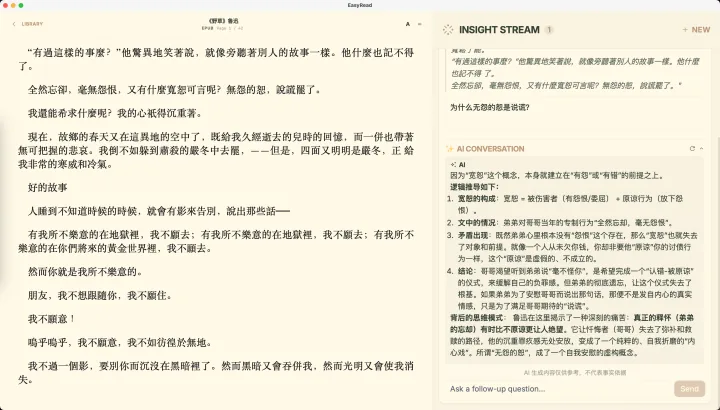
Ask while you read — no copy and paste
Import the EPUB into EasyReadAI, select a passage on the page and ask AI right there. The answer sits next to the original text, you can keep asking, and the lines worth keeping go into your notes for later review.
This web tool vs the app
| Web tool (this page) | EasyReadAI app | |
|---|---|---|
| Asking AI | Copy text, paste it into an AI site | Select on the page and ask |
| Context | You paste it each time | Answers sit next to the passage; follow up anytime |
| Notes | Up to you | Saved as notes to review later |
| Cost | Free | Free to download; AI questions use credits, or bring your own API key |
Available for iPhone, iPad and Mac on the App Store. There is no Android, Windows or web version yet. The app imports EPUB, PDF and TXT.
The first time you use AI Q&A, you agree to send the selected passage and question to the service you chose. AI answers are for reference only.
View on the App StoreFAQ
Is my file uploaded?
No. The EPUB is parsed and exported in your browser; this page does not send the book to any server. Text only goes to an AI service when you paste or upload it there yourself.
Why split a book into parts?
A single conversation can only take so much text. For long books the tool splits by chapter, and between paragraphs when a chapter is too long, and starts each part with a prompt so the AI reads everything before answering. If your AI accepts file uploads, uploading the TXT is simpler.
Can it convert books with DRM?
No. It stops as soon as it detects DRM encryption and does not offer any way to remove it. Kindle formats such as AZW and KFX are not supported either.
Does it work on a phone?
Yes. The web tool works in desktop and mobile browsers. The EasyReadAI app is available for iPhone, iPad and Mac.
What about Japanese ruby and vertical text?
Ruby is removed by default; turn on “Keep ruby” to export it as 漢字(かんじ). Vertical writing only affects display, so the export is plain text.