Short answer: Yes once you sign in — but not as an ebook reader. In our test on 14 October 2026, a signed-in ChatGPT account on the Free plan accepted an EPUB upload and answered questions using the book’s own content; signed out, ChatGPT cannot upload any files. EPUB is still not explicitly listed among OpenAI’s common upload formats, so results may vary by account. And reading a file is not the same as being a reader: ChatGPT has no paginated reading, no location-linked highlights, and no workflow built for finishing books.
If you searched "can ChatGPT read EPUB", you probably want one of two things: analyze a file quickly, or actually read a book with AI help when a paragraph gets hard. Those need different tools.
Related reading: ChatGPT vs an AI Ebook Reader · Read EPUB Without Copy-Pasting · What Is an AI Reading Companion?
Free tool: EPUB to text for ChatGPT and Claude — export by chapter in your browser; the file is never uploaded.
We tested it: uploading an EPUB to ChatGPT (14 October 2026)
Method: ChatGPT on the web (chatgpt.com), signed out and signed in. The book was a DRM-free EPUB of a Chinese translation of Nakajima Atsushi’s The Moon over the Mountain (山月記). We used a personal account on the Free plan.
| Situation | Result |
|---|---|
| Signed out | In the “+” menu, “Add files” is greyed out with “Log in to use”; only photos and web search are available. No EPUB, and no TXT either |
Signed in, uploading 山月记.epub |
Upload worked. ChatGPT replied that it had received the EPUB and offered to extract the text, outline the plot or analyse the characters |
| Asked to “surprise me” about the book | It retold the plot correctly (Li Zheng quits office to write poetry, returns to a minor post, and turns into a tiger) and quoted the translator’s afterword, which notes the story is a long-standing Japanese high-school text. That afterword only exists in this edition, so the answer came from the file, not general knowledge |
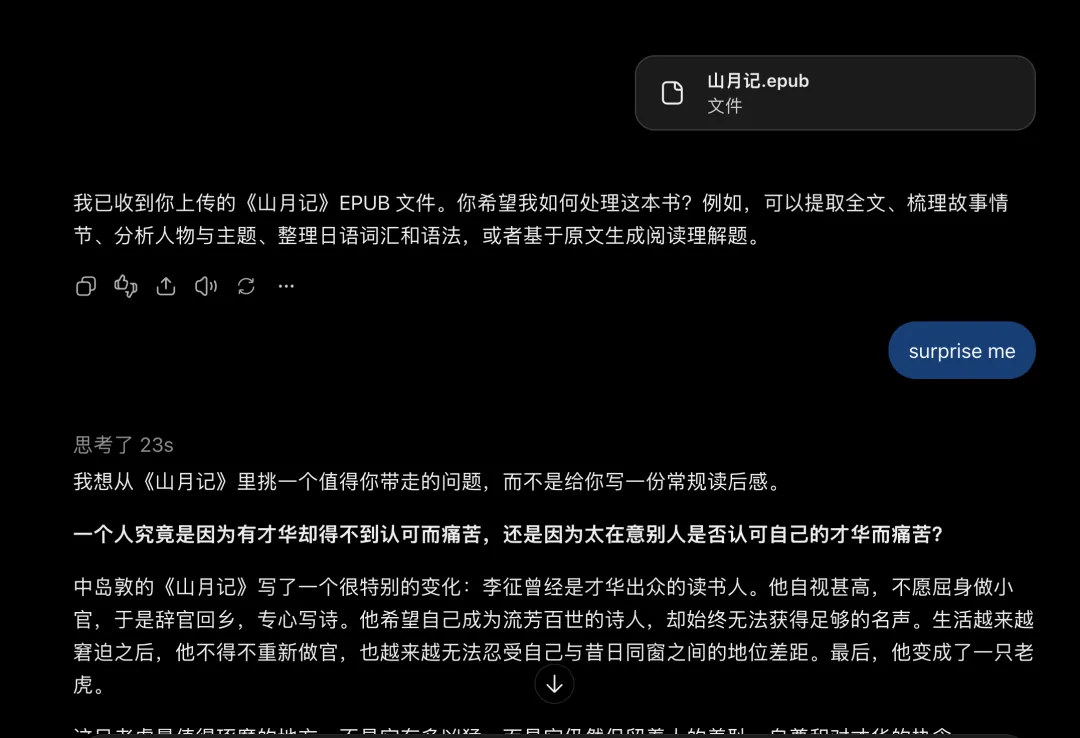
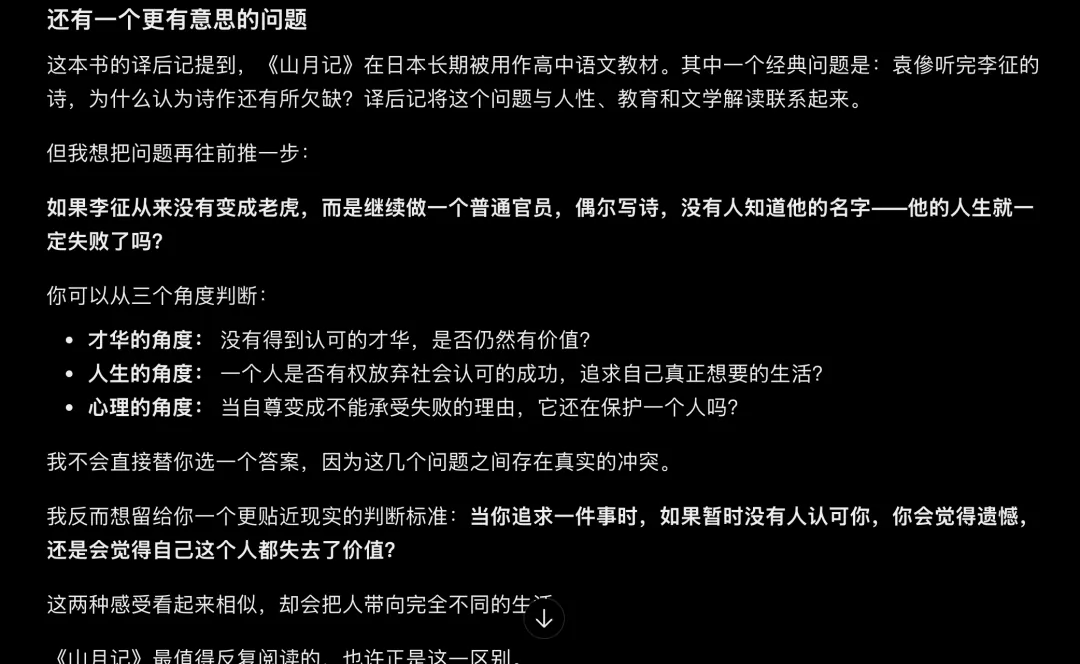
Not covered by this test: whether paid plans behave differently, the size limit for one EPUB, and whether a very long book is read in full. If an upload fails, or the answers clearly miss later chapters, convert the book with our EPUB to text tool and upload the TXT, or paste it chapter by chapter.
Can ChatGPT read EPUB files?
| Question | Answer |
|---|---|
| Can ChatGPT open an EPUB like a reader? | No — no paginated book UI, bookmarks, or reading progress in a dedicated reader |
| Can you upload an EPUB to ChatGPT? | Yes when signed in, even on the Free plan (tested 14 October 2026); signed out, no files can be uploaded. EPUB is still not named in OpenAI’s supported file types |
| Can ChatGPT replace an ebook app? | No — it is a chat assistant, not a reading environment |
| Is there a better way to read EPUB with AI? | Yes — AI reading companion apps can import EPUB and let you ask about a selected passage in context |
ChatGPT processes prompts and uploads. An EPUB is a packaged ebook with chapters, styles, and navigation. Even when upload works, you are still in a chat thread, not a reading flow designed for finishing books.
What OpenAI officially supports
OpenAI's current documentation lists common document formats such as PDF, DOCX, PPTX, XLSX, CSV, and TXT, but does not explicitly list EPUB. Its separate File Uploads FAQ also documents file-size, token, storage, and usage limits. That is why the safest answer is not “EPUB always works,” but check your account and keep a conversion fallback — even though a signed-in account accepted an EPUB in our 14 October 2026 test above.
EPUB is more than a plain text file: the W3C EPUB 3 overview describes a publication format with packaged content, navigation, metadata, and reading-system behavior. A chat upload can extract or analyze content without becoming an EPUB reading system.
ChatGPT vs AI reading companion for EPUB
| Need | ChatGPT | AI reading companion (e.g. EasyReadAI) |
|---|---|---|
| Read EPUB for hours with typography | Weak — chat UI | Yes — native reader |
| Highlight a passage → ask AI | Manual copy-paste | Built-in — selection is context |
| Notes tied to page/chapter | Not designed for this | Yes — passage + your thought + AI reply |
| Local book library on device | Cloud upload model | Local-first by default |
| Finish a difficult book cover to cover | Awkward — context switching | Designed for inline help while you read |
| One-off questions about a file | Strong | Possible but not the main job |
Choose ChatGPT if you want quick answers about an uploaded document and do not need a real reading experience.
Choose an AI reading companion if you own EPUBs and want to keep reading the original text when stuck — without leaving the page.
Three workarounds people use (and their limits)
1. Try the EPUB, or convert it first
If your account does not accept EPUB, convert the book to PDF or TXT before asking short questions about its content. The official calibre conversion documentation explains how ebook conversion works and which options can affect the result. Conversion still comes with file and token limits, no reading progress, friction when discussing many passages, and the privacy implications of uploading the whole file or large sections to the cloud.
2. Extract text and paste chapters
Tools like Calibre or scripts can export plain text. You paste into ChatGPT chapter by chapter. Tedious for long books; you lose layout, footnotes, and easy navigation.
3. Use an AI EPUB reader app
Import the EPUB, read normally, then select → capture → ask. Best for book-length reading. See best AI EPUB readers for difficult books.
How to read EPUB with AI (without copy-pasting)
- Import your EPUB into a reader app (EasyReadAI supports EPUB, PDF, TXT on Mac and iPad).
- Read until a paragraph is confusing — do not switch apps.
- Highlight the passage → Ask AI to explain, translate, or break it down.
- Save the note with the excerpt and AI reply; jump back to the same place later.
This is the workflow behind an AI reading companion, not a summarizer. You still do the reading; AI shows up only when needed.
FAQ
Can ChatGPT read PDF books?
Similar story: upload may work for Q&A, but it is not a PDF reader with highlights and reading notes tied to location. For long-form reading, a dedicated app usually fits better.
Does ChatGPT support EPUB on the free plan?
Yes, once you sign in. In our 14 October 2026 test, a signed-in Free-plan account accepted an EPUB and answered from the book, while signed-out ChatGPT could not upload any files. Limits and formats change, so check OpenAI's supported file types and Free Tier FAQ.
What is the best ChatGPT alternative for reading EPUB?
For reading books you own, look at AI reading companion apps with a local library, passage-level questions, and contextual notes. EasyReadAI is one option for Mac and iPad; also compare Quill and others in our comparison roundup.
Is EasyReadAI the same as "EasyRead" summary apps?
No. Some apps named EasyRead focus on chapter summaries. EasyReadAI is a reading companion — you read the original; AI helps when stuck. See AI reader vs summarizer.
Can I use ChatGPT and EasyReadAI together?
Yes. ChatGPT for research across many topics; EasyReadAI when you are inside one book and want zero context switching.
EasyReadAI: ask AI right on the page
Our test shows ChatGPT can read an EPUB, but you keep switching between the chat and the book. EasyReadAI works the other way round: import the EPUB, select a passage on the page and ask AI there, with the answer next to the original text. See Ask AI for follow-up questions on a highlight.
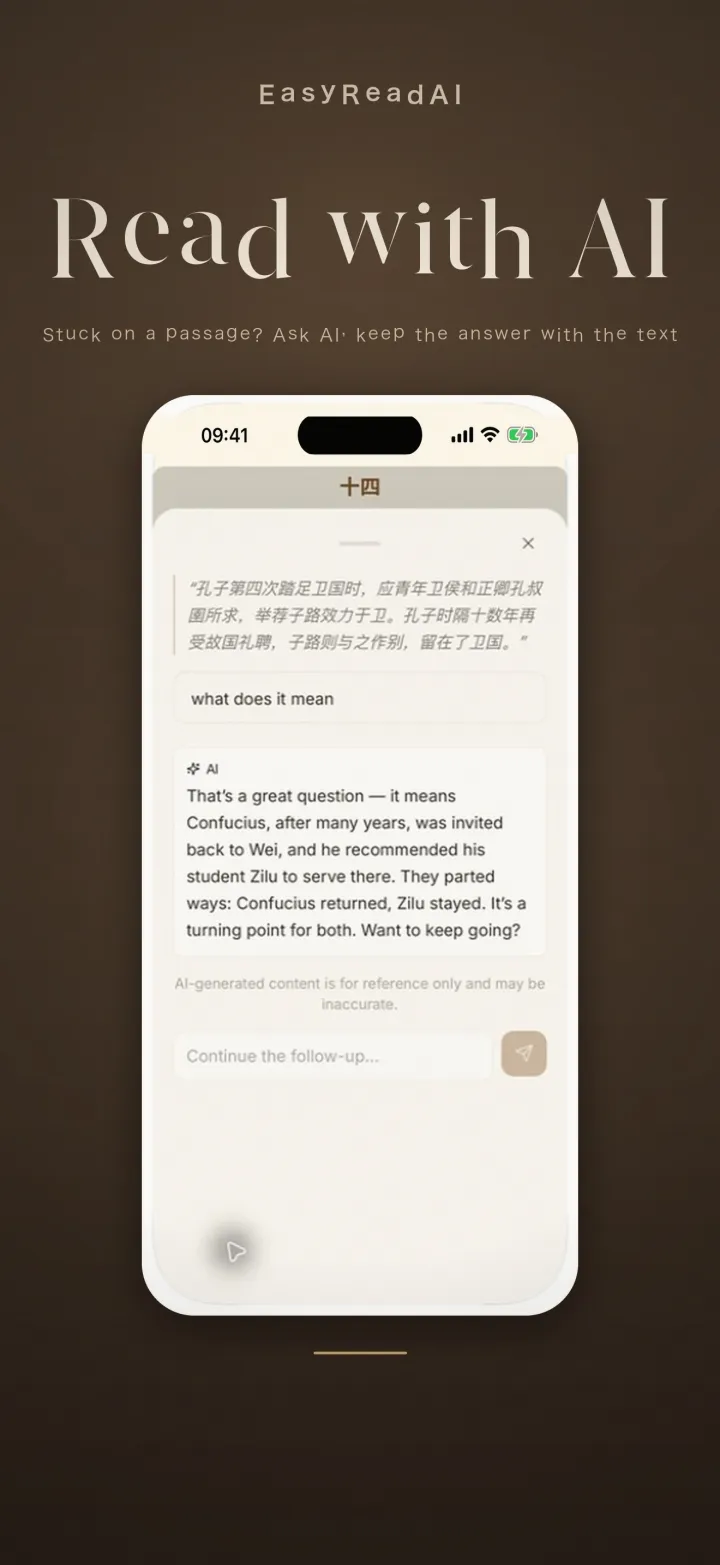
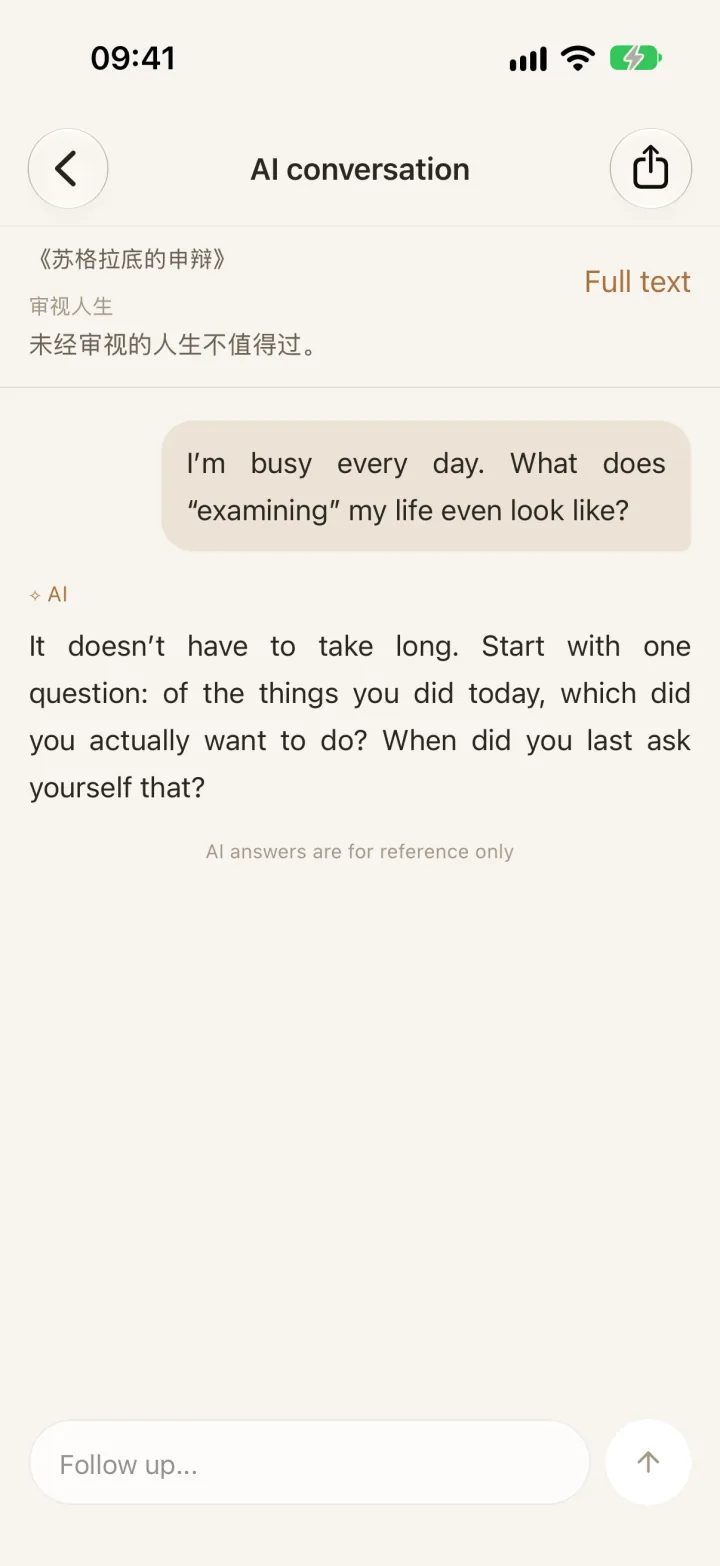
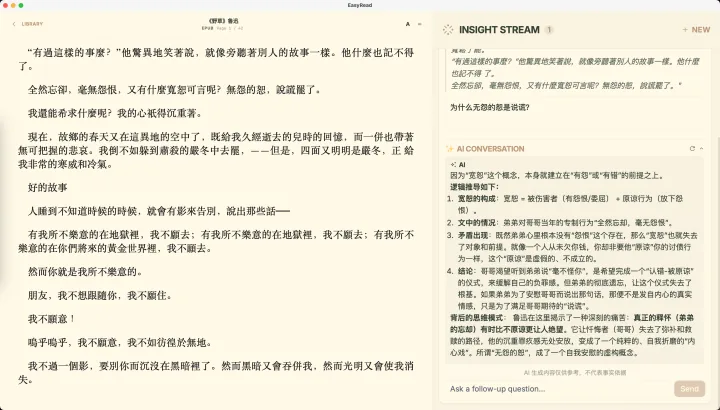
Platforms: iPhone, iPad and Mac, on the App Store. There is no Android, Windows or web version yet. The app imports EPUB, PDF and TXT. AI questions use credits, or you can bring your own API key; the first time, you agree to send the selected passage and question to the service you chose.
Final recommendation
Can ChatGPT read EPUB? Once you sign in, it can read an uploaded EPUB and answer questions about it (tested 14 October 2026). It is still not a reader. For finishing difficult ebooks, use an AI reading companion that keeps you in the book.
EasyReadAI imports your EPUBs, lets you capture a selected passage as a card, type a question, and tap Ask AI. It stores the passage, answer, and your note together—local-first on Mac and iPad, with no persistent page highlighting.
Download EasyReadAI on the App Store · Support & FAQ